

From Nov 2024, Img.vision supports uploading folders containing subfolders and images.
The benefit is that you can keep the folder structure that is on your computer, it will be copied to your Img.vision drive. During the upload process, the folder and subfolders will be created, and the uploaded images will be put in the correct folder.
Which subscription plans support this?
- All Pro plans
- All Pro Max plans
- All library plans
How to upload folders?
To upload folders, press the upload button in the main media area. Then click on the Upload Folders button.
You can use the button to open your computer browse window and select folders to upload.
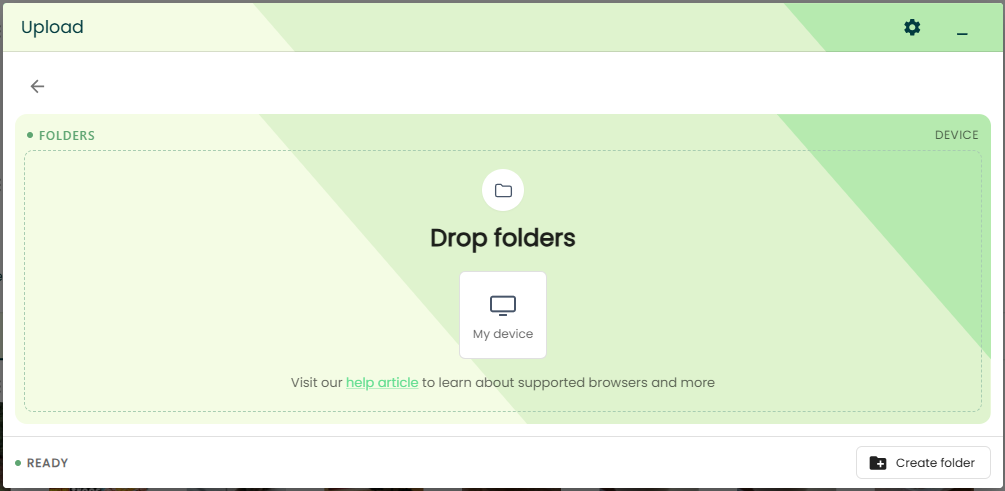
Drag and drop folders
You can also upload folders by dragging and dropping one or more folders into the Upload folders dialog.
You can also drop folders straight into My media. They are uploaded with all their subfolders, the same as with the Upload folders button.
Folders from Google Drive, OneDrive or Dropbox
Cloud imports can import whole folders too. Pick a folder in OneDrive, Dropbox or Google Drive, and its subfolders are recreated in your drive with every image in the right folder.
For folders from Google Drive, ask me for access through the contact bubble first, because Google still has that part in a test phase. Picking single files from Google Drive works straight away.
Supported browsers & devices
Upload folders was tested and verified to work on the latest versions of:
- Windows Chrome
- Windows Firefox
- Windows Edge
- Windows Opera
- Windows Brave
- Mac Safari
- Mac Chrome
- Mac Firefox
- Mac Edge
- Mac Opera
Uploading folders is not supported on mobile devices.
