

How to add photos to an eBay listing (and more than 24)
eBay allows you to upload and show 24 photos in the listing gallery. You can in fact add more images still, inside the listing description. It’s perfectly allowed by eBay and frequently used by sellers to boost buyer’s confidence in the product and boost the sales of the seller.
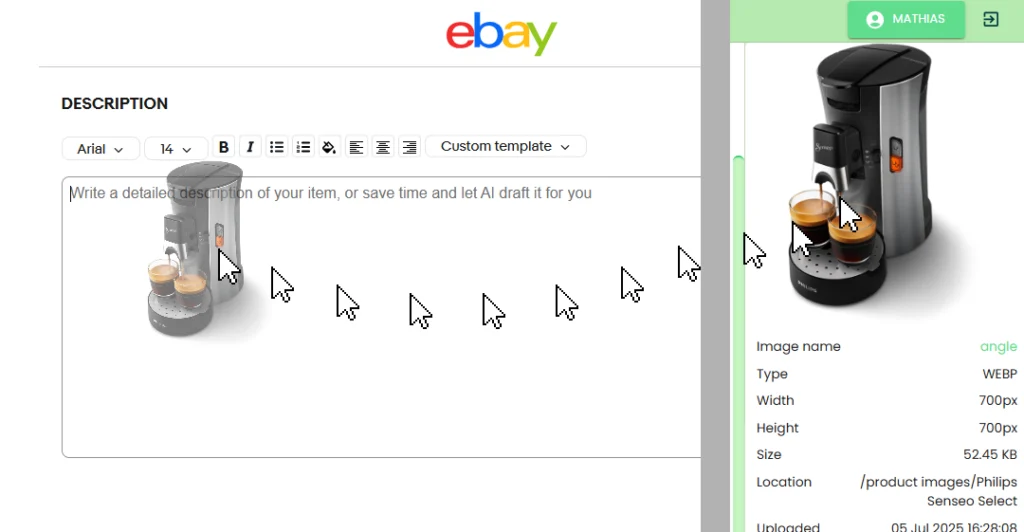
You can either embed additional images by pasting image embed code into the description when its contents is converted into HTML code using the checkbox, or paste a photo gallery embed code, or, if you are on desktop, drag the sidebar preview image into the eBay description (when both sites are shown in windows next to each other).
How many photos can you put in eBay’s listing gallery?
eBay allows you to upload and use 24 photos in the listing gallery. You can drag and drop those into your listing from your device and eBay will host them in their eBay Picture Service (EPS). But you can add more, read on…
Can you add more images than those 24?
Yes, you can. Sellers frequently add more photos in the listing description.
The catch is that eBay won’t host those images for you. You can also not use their own EPS hosting service for this. Relying on another marketplace eg. Shopify to host them is not reliable, if anything changes at Shopify, you risk having all your listing images at eBay going offline. If you rely on a free image host, then you’re risking your business on notoriously unreliable partner (see uptime and speed comparison of image hosts).
So, you basically need a marketplace image host, like Img.vision. The below guide explains how to add more than 24 images to your listing, using your browser, and using the listing description field.
Option 1: Embed one or more images using code
Step 1: Retrieve one or more direct image links
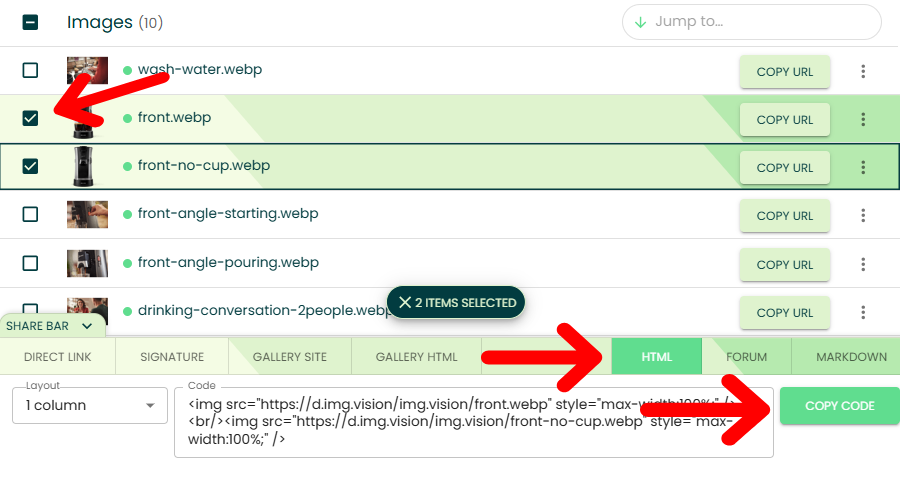
Upload your image to your Img.vision drive, select one or more images, select the HTML code share method/share tab and copy the code.
Step 2: Use the listing description HTML converter to view the HTML code
This checkbox turns anything in your eBay listing description into machine code called HTML. This is the code that browser read to display a website.
This checkbox can be very confusing to beginners. That’s because this checkbox converts your description into its HTML code and back. It is not a checkbox to “enable HTML embed code” or “allow pasting image code”. The fact this is a checkbox and not a switch is partially why its so confusing.
Paste the HTML code you copied on a new blank line. Take care not to paste it in the middle of existing code, as your existing description contents will break.
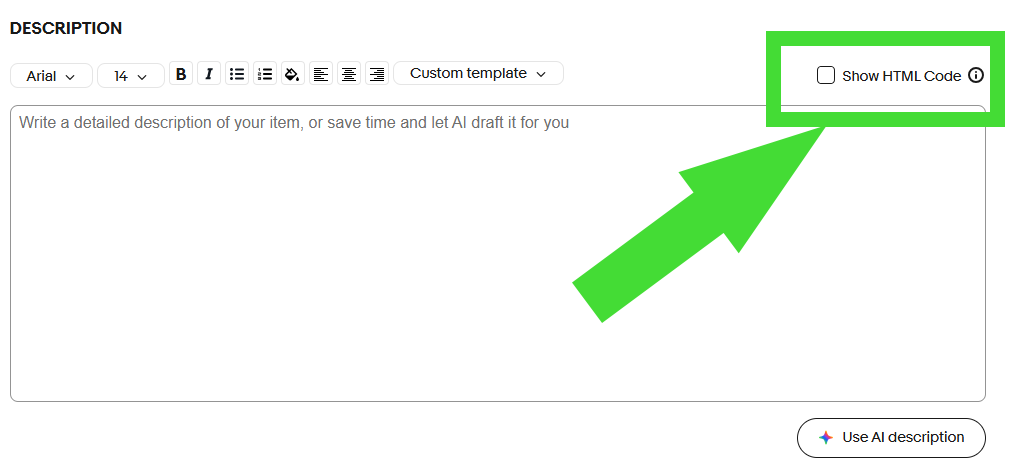
Step 3: Switch off the converter checkbox
Switch the converter checkbox off and continue editing the description as usual. You’ll immediately see that the product photos you embedded will be loaded. If you don’t see them at this point, something is wrong.
Pro tip
Add in each image HTML tag, after the <img with a space before and after so it doesn’t stick to the other code, a descriptive sentence using alt="add descriptive sentence here" for SEO benefits
Option 2: Embed a photo gallery (4 layouts)
Step 1: Select a photo gallery layout and copy the embed code
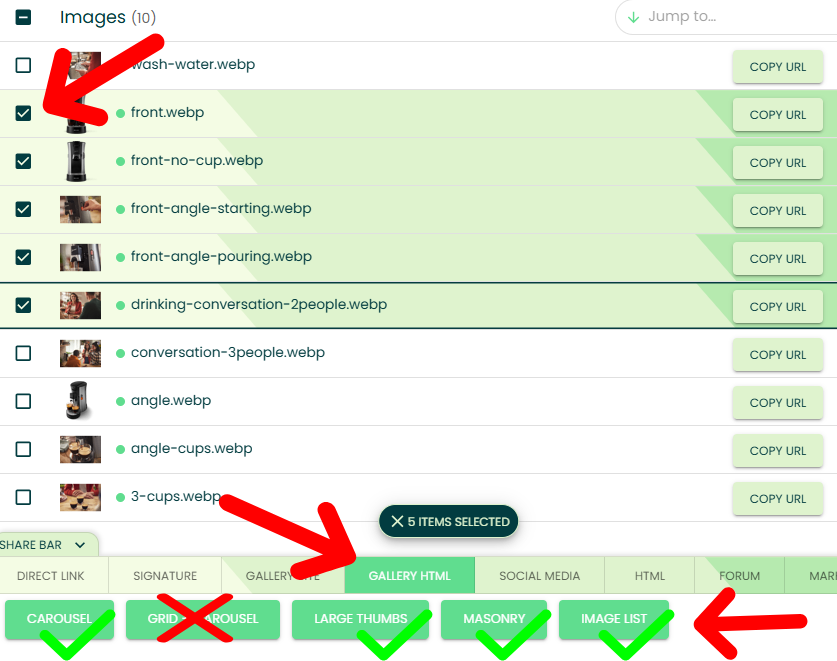
Img.vision offers 4 layouts that are compatible with eBay: Carousel, large thumbs, masonry, and image list.
Upload your images, select the Gallery HTML tab in the share bar and pick your layout.
You can preview the gallery before copying the code from within your Img.vision dashboard.
Step 2: Just like option 1, execute the HTML code converter
Again, a warning, the checkbox is not really a checkbox to enable “HTML code embedding”, it’s actually a converter that changes anything in the description box to HTML code and back.
Paste the gallery embed code you copied into a blank line when the HTML code is being shown.
Step 3: Press the HTML conversion checkbox to convert back
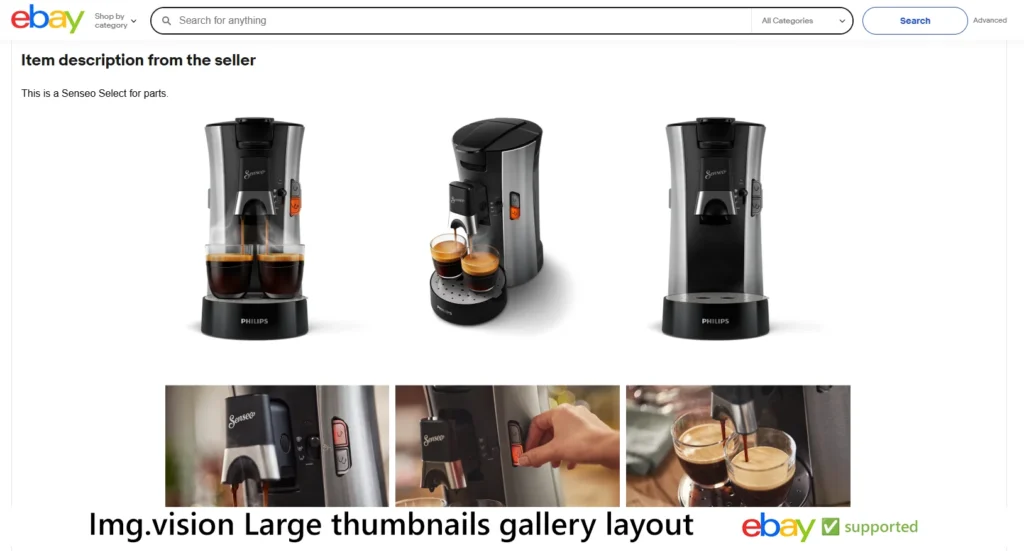
You can see the photo gallery and interact with it in your description box now.
You can also use the eBay listing preview to get a bigger area to test the photo gallery.
Pro tips
- Pick a layout that matches your brand aesthetic (e.g. grid vs. carousel‑style).
- Put the gallery near sizing/condition info to anticipate buyer questions.
Option 3: On desktop, you can drag & drop images into the description
Step 1: Open an Img.vision window and place it next to your open eBay listing window
Both Windows and Mac allow you to open multiple browser windows and place them next to each other without overlapping.
Make sure the image you want to drag is selected in your Img.vision dashboard. and you can see the right sidebar preview.
In the eBay listing window, make sure you can see the description box, and that you’ll be able to drag into it.
Note: The HTML converter checkbox I discussed above should not be checked for this. In fact, we don’t need that option for this method.
Step 2: Drag the preview image into the eBay description box
When you release the image into the description box, under the hood, your browser will tell eBay what the full-sized image link is, write the necessary HTML embed code and place the image in your description. You can instantly see the result.
Pro tip
Prepare images in a consistent aspect ratio (e.g., 1:1 or 4:5) to keep pages tidy.
Best-practice checklist for conversions
- Lead with benefits images (what changes for the buyer).
- Show scale (ruler, in‑hand, next to a common object).
- Add defect transparency (close‑ups build trust, reduce returns).
- Keep lighting consistent; prefer neutral background.
- Use 150–200 KB target file sizes where possible for quicker loads.
- Maintain a logical order: hero → angles → details → size/care → extras.
Common mistakes & quick fixes
- Too many similar shots: Curate down to the clearest 5 to 9.
- Huge files that slow pages: Resize your photos to be smaller before including them, cameras usually have very large resolutions, so the image ends up with huge dimensions that are totally unnecessary on the internet.
- Buried galleries: Place the gallery right after the key bullets or main description.
- No alt text in HTML embeds: Add alt tags for accessibility and SEO. Inside the <img> html tag add code like this
alt="short description", for example<img src="https://d.imgvision.net/drivename/image.jpg">becomes<img src="https://d.imgvision.net/drivename/image.jpg" alt="the short description">.
FAQs
Are externally hosted images allowed in eBay listing descriptions?
Yes, they are perfectly allowed. You need to adhere to eBay’s image policy of course, but embedding product photos is generally allowed and frequently used by sellers to boost sales.
Can I add photos to my listing after I receive bids?
If your listing has bids you can still add photos in the eBay photo gallery, but not change any photos, and also you can’t edit the listing description anymore. If less than 12 hours are left to bid, you also cannot add any photos to the eBay listing gallery anymore.
How many photos can you add to an eBay listing?
You can add up to 24 photos in a listing’s photo gallery and unlimited in the listing’s description, including even additional galleries.
How do I add more than 24 photos to an eBay listing?
Get external marketplace image hosting like that from Img.vision, host your additional images, and use the generated embed code to add more images to your listing description.
How do I change the main photo on an eBay listing?
Use the listing revise option and reorder the images.
Is adding extra images to an eBay description free?
eBay charges you nothing for it. An external marketplace image host will charge you for hosting the images. Free image hosts are not advised due to unreliability.
Can I add extra photos from the eBay app / iPhone?
Method 1 and 2 explained in this guide work in the eBay app / iPhone, the last method doesn’t and is desktop only.
What HTML tag adds an image to an eBay description?
The HTML <img> tag allows you to embed an image in the eBay description. Example:
<img src="https://d.imgvision.net/drivename/image.jpg">Will mobile buyers see the images?
Yes, but always preview on mobile to ensure sizing, padding, and readability hold up.
What’s HTML code?
Everything between these brackets: < > is a tag that does something very specifically, like displaying a link or an image. Everything not between these brackets is normal text. A tag always has an opener and a closer. The closing tag will contain the same keyword but have an additional slash after the first bracket. Example of a paragraph tag containg text: <p>text</p>. Paste your image HTML code somewhere inside the existing HTML code and take care not to paste it inside a <tag>, but outside such tags.
