

Seller Hub Reports is eBay’s built-in bulk listing tool. You download a template, fill in your product data and image URLs, upload the file, and eBay creates the listings. This page walks through each step, from downloading the right template to uploading your completed file.
What this page covers
What is Seller Hub Reports?
Seller Hub Report, previously called eBay File Exchange, allows you to upload spreadsheets (xlsm, xlsx, txt, csv files) containing product data and product image links. You’ll need external image hosting like Img.vision offers to use this method efficiently.
Create an eBay Sellers account
Before you can sell on eBay you’ll first need to create an eBay sellers account.
Visit the eBay create seller account page to get started.
How to access Seller Hub Reports
- Login to your Seller Hub
- Go to “Listings“
- Click the button called “Create listing“
- Click the “File upload” button
Alternatively, after logging into Seller Hub, Click the “Reports” tab.
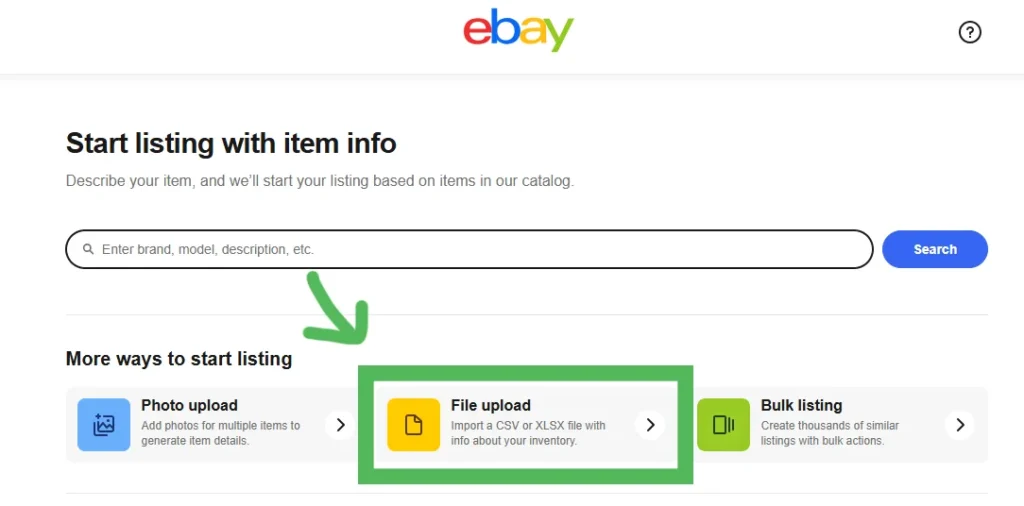
Steps to Seller Hub Reports
Step 1: First download the right template.
- Click the Get template button
- Select as source Listings
- Select as type “Create or Schedule new listings“
- Select the file type : Excel Spreadsheet (xlsx) or Comma separated file (csv)
- Select the categories of your products. You can choose between five or ten categories.
- Download the file
Step 2: Fill in the template.
Step 3: Upload the template.
Step 4: eBay creates the listings based on the info in the excel.
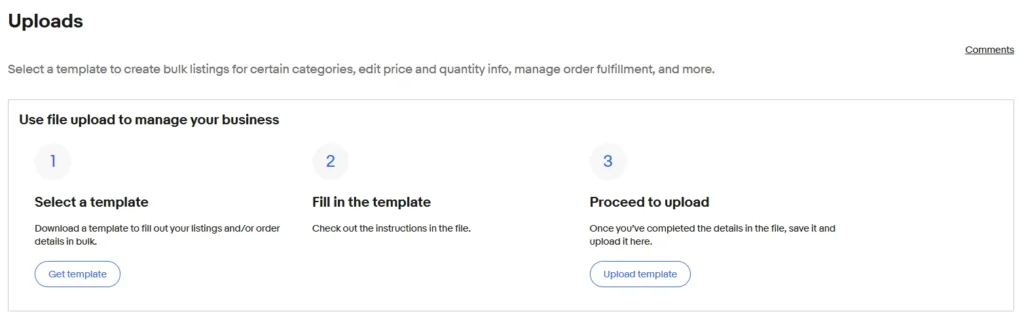
Image hosting
In order to complete your Excel spreadsheet or CSV file with product images, you’ll need to get a fast and reliable external image host that specializes in e-commerce.
eBay flat-file uploads fetch images in bulk from external URLs. That process often breaks when using generic image hosts or CDNs that weren’t designed for marketplace ingestion. Img.vision is built specifically for this workflow.
Optimized for bulk workflows
Img.vision is designed for CSV and flat-file workflows. eBay requires long-lasting, publicly accessible image links. Img.vision provides permanent, predictable URLs that won’t break after uploads.
After uploading your images, you can use a formula in your Excel or Google Sheet like this: ="https://d.imgvision.net/your-drive-name/" & A2 (where column A has the image filenames). You can then drag the formula down to generate all the links.
No image rejections
Img.vision never rate-limits or blocks eBay’s bulk image crawlers. Crawlers don’t behave like browsers and they can be fairly aggressive in downloading images, regular image hosts will throttle them or block them. So you need a e-commerce image host where flat-file uploads can safely pull thousands of images without triggering firewalls or errors.
Check out the eBay image hosting features of Img.vision, and register an account.
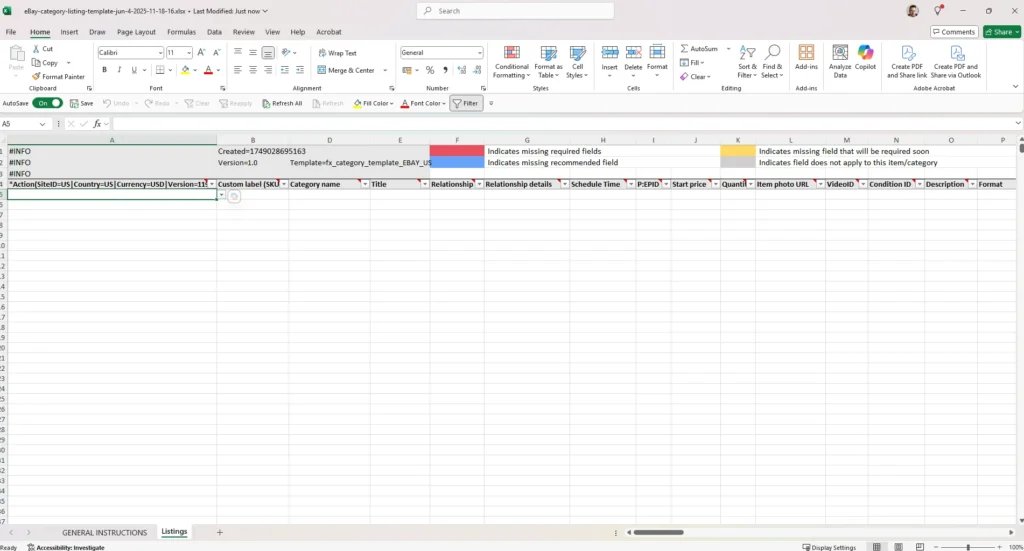
Using Excel (xlsx) files
If you have Microsoft Excel, choose the Excel file to download. This approach is easier than the CSV file method.
The file you download has a lot of notes and information inside. Each column has a note indicating:
- If the field is required
- A description of the field
- The format of the value
- Optionally a list of values you can use
- Optionally a character limit
Using CSV files
The hardest part is using the CSV files so I’ll explain how to do that here.
We’re going to download the csv file and open it in your spreadsheet.
I’ll show you how 2 popular spreadsheet programs work:
- Google Sheets
- Microsoft Excel
Open your CSV in Google Sheets
First upload the product-combines.csv file to your Google Drive:
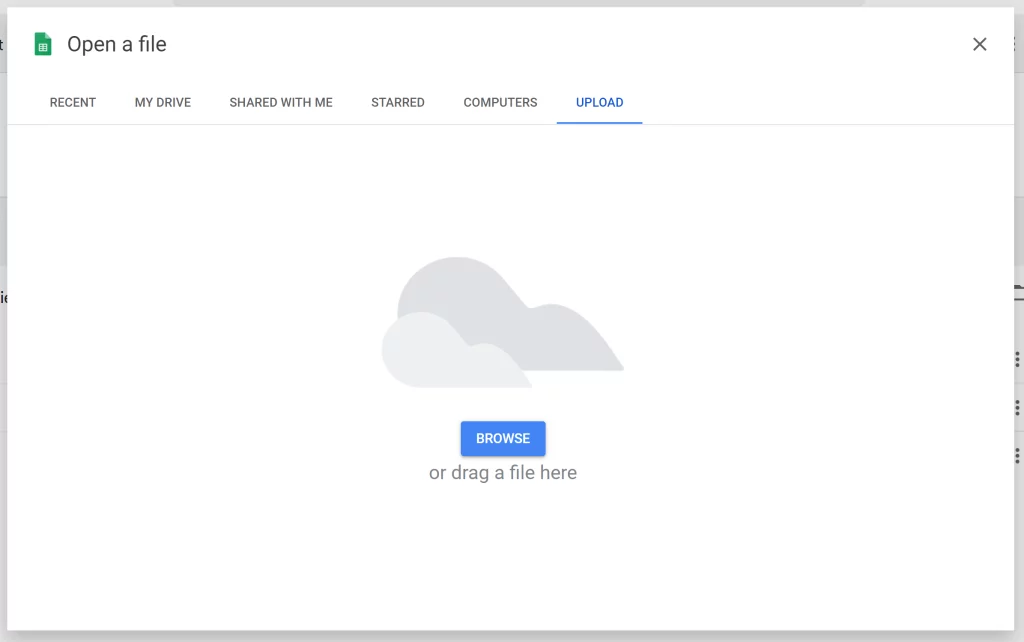
Then open the file and choose to open it with Google Sheets:
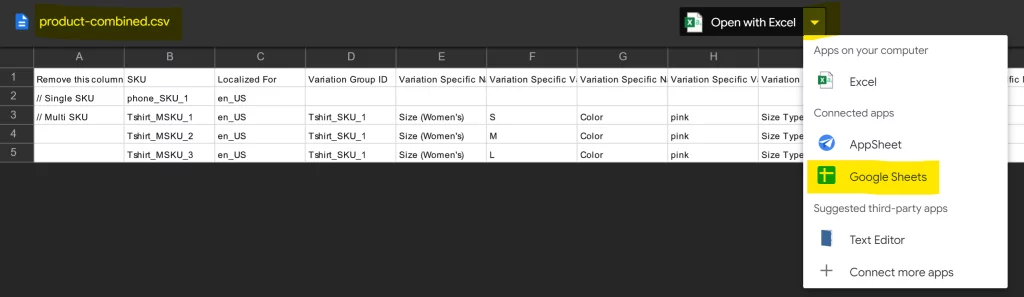
The file will be loaded automatically into the cells, and you can start editing:

Open the CSV in Excel
Excel should automatically fill in the values in the correct cells.
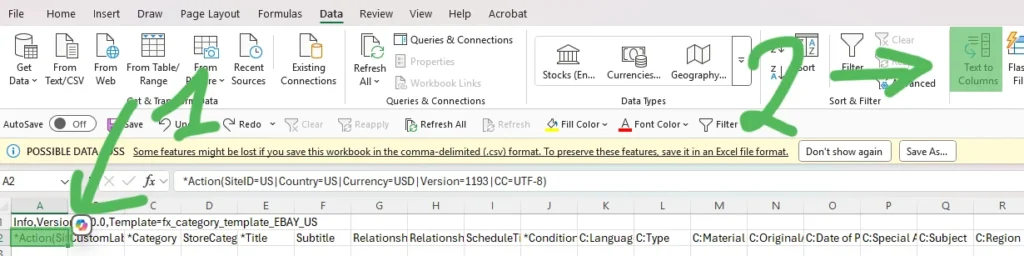
If not, then:
- Select the second row, first cell
- Open the toolbar tab Data
- Choose Text to Columns
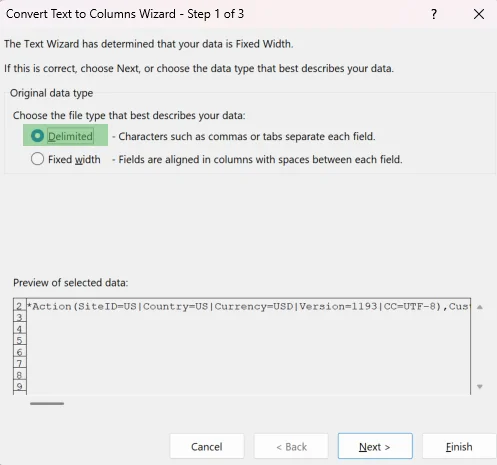
Choose that the values are delimited with a character:
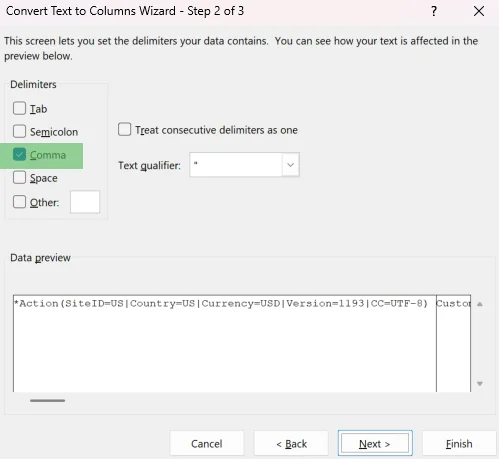
Choose comma as character that is being used to separate the values. After which you can click Finish.
Upload your product images and grab the link code
- Register an Img.vision account. Img.vision has many eBay sellers using the service. Prices start at 7.99USD/mo.
- Upload your product images to your Img.vision drive
- Select your uploaded image and copy the link code from the Share Bar
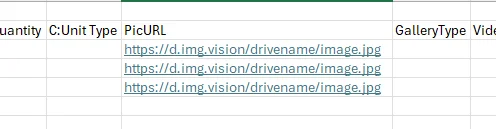
- Add the link code to your spreadsheet
Paste the links in your in the right cell:
Save your file as a CSV file
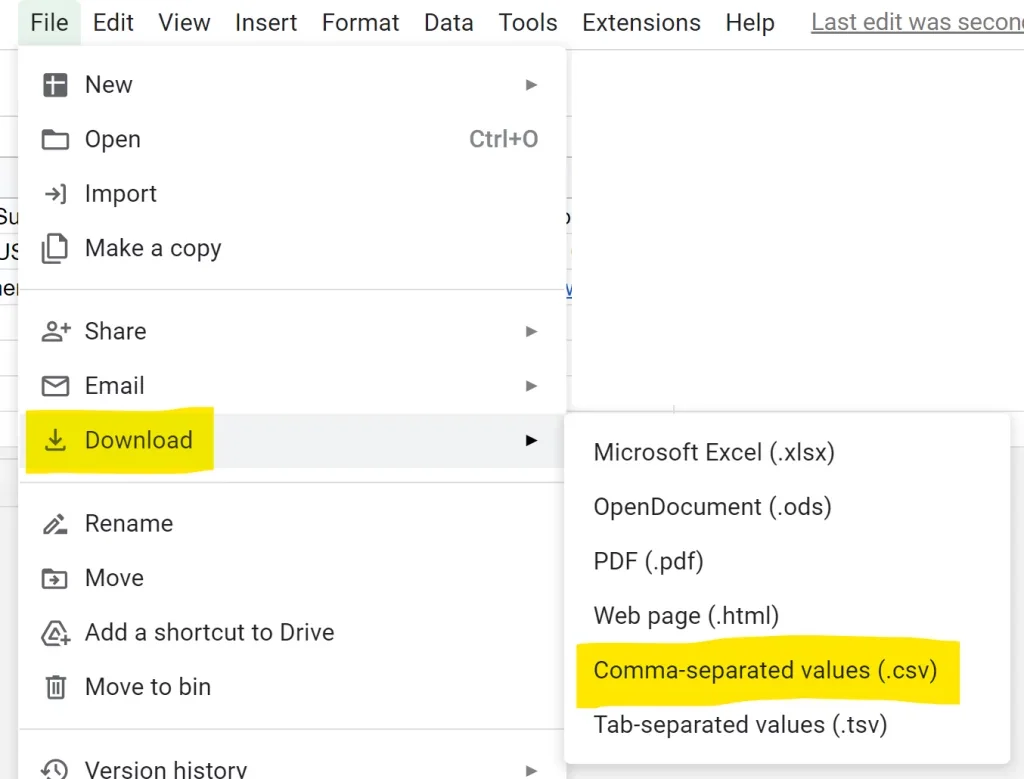
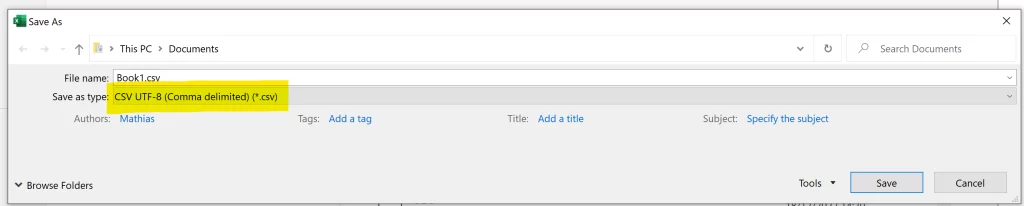
We must save the file back to a CSV file when we’re done, we cannot keep it as a fully featured spreadsheet file.
- In Google Sheets: File > Download > Comma-separated values
- In Microsoft Excel: File > Save As > Other locations > Browse
Troubleshooting Seller Hub Report uploads
When uploading listings through eBay Seller Hub Reports, image issues are one of the most common causes of failed or incomplete uploads. Problems often don’t show up as clear errors, making them frustrating to diagnose. If your images don’t appear as expected, these guides cover the most common scenarios and fixes:
- Images missing after publishing: Listings go live, but photos disappear shortly after. Learn what triggers this and how to prevent it.
- Fixing photo upload errors: A breakdown of common Seller Hub image errors, what they really mean, and how to resolve them.
- Photo compliance rules: eBay’s image requirements around size, format, background, and content, and how to stay compliant in bulk uploads.
- Rejected image links: Why eBay refuses certain image URLs and how to ensure your links are accessible, stable, and crawlable.
- Why photos disappear: The deeper reasons images get removed days or weeks later, including hosting, format, and ingestion issues.
These guides are designed to help you quickly identify whether the problem is the flat file, the image URLs, or eBay’s ingestion process, so you can fix issues once and avoid them in future bulk uploads.
