

You can add a professional image gallery to your eBay listing without paying any additional eBay fees, as long as you follow eBay’s strict HTML rules.
eBay allows sellers to embed static HTML and CSS in listings, but blocks all active code, such as JavaScript. External files are not permitted either, with one key exception: the images themselves may be hosted externally and embedded via direct image URLs.
This means that to add a gallery, you need two things:
- A gallery code generator that outputs clean, JavaScript-free HTML accepted by eBay
- A reliable image host that delivers eBay-compatible image URLs
What this page covers
eBay-Supported Image Galleries from Img.vision
Img.vision provides embeddable image galleries specifically designed to work within eBay’s listing restrictions. Each gallery layout uses static HTML and CSS only and has been tested in real eBay listings to ensure full compatibility.
Below, you’ll find an overview of all available gallery layouts, along with actual eBay listing screenshots showing how each one appears to buyers.

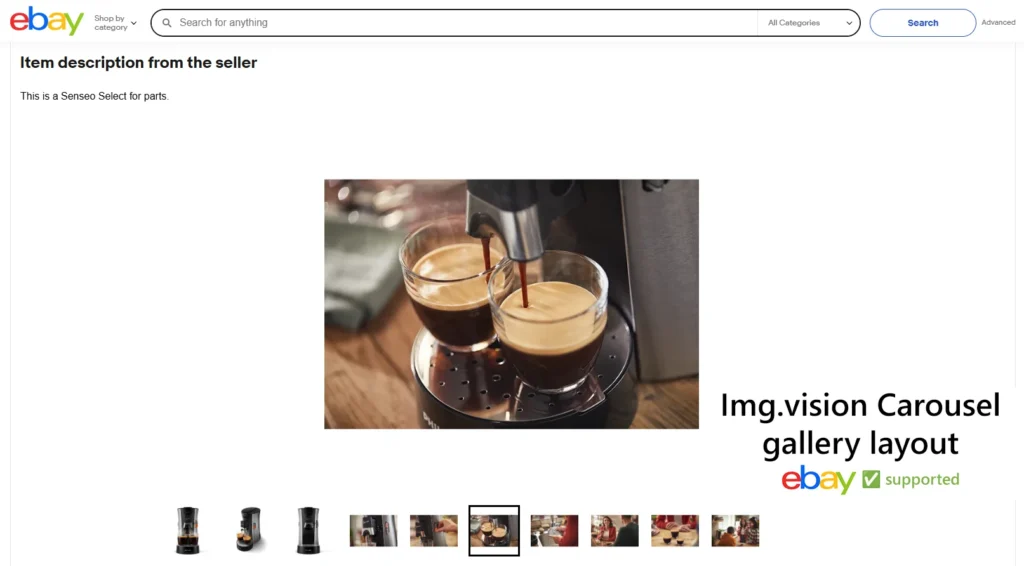
Carousel gallery
In this gallery layout, there are rows of small thumbnails. You can click on a small thumbnail to load a large version of the image above it. By default the large version of the first small thumbnail is shown on page load.
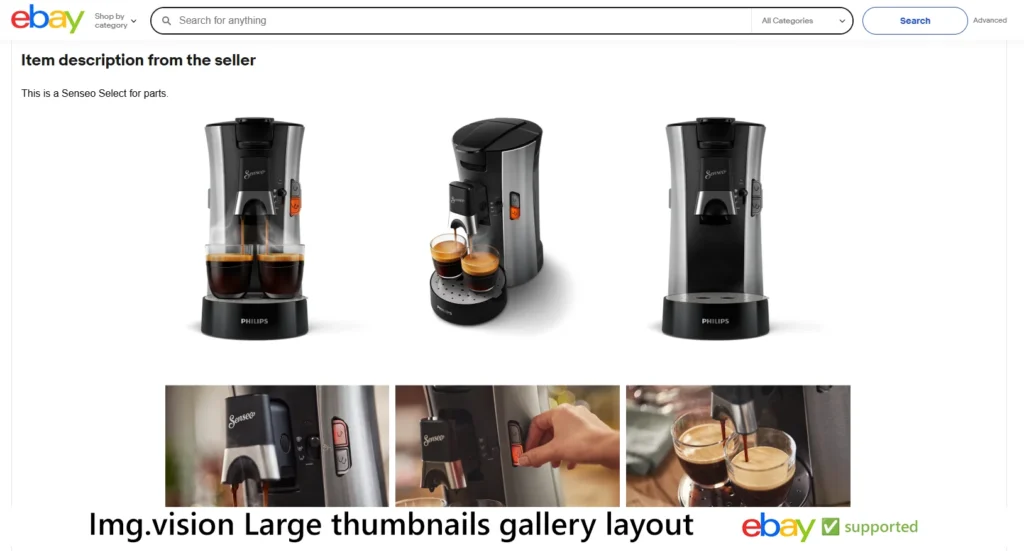
Large thumbnails gallery
This layout works best with images that are the same dimensions. It will show a large thumbnail of the image in a grid.
Masonry gallery
If the dimensions of your photos are all different sizes, then you should opt for the masonry layout. It loads all the photos in a grid, but will try to minimize white space by squeezing images together, just like how a mason would make a brick wall. This type of gallery layout can also be found on Pinterest.
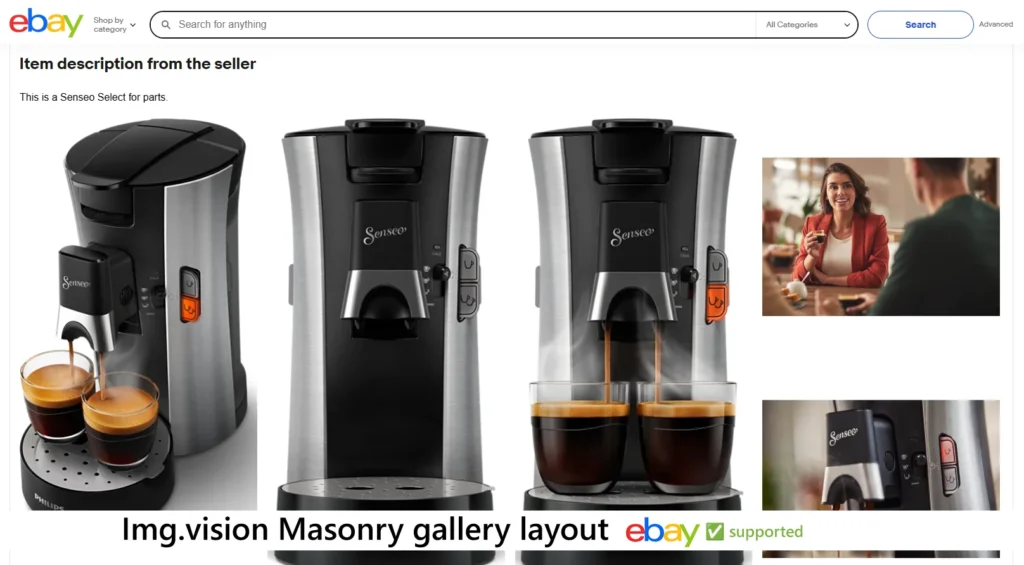
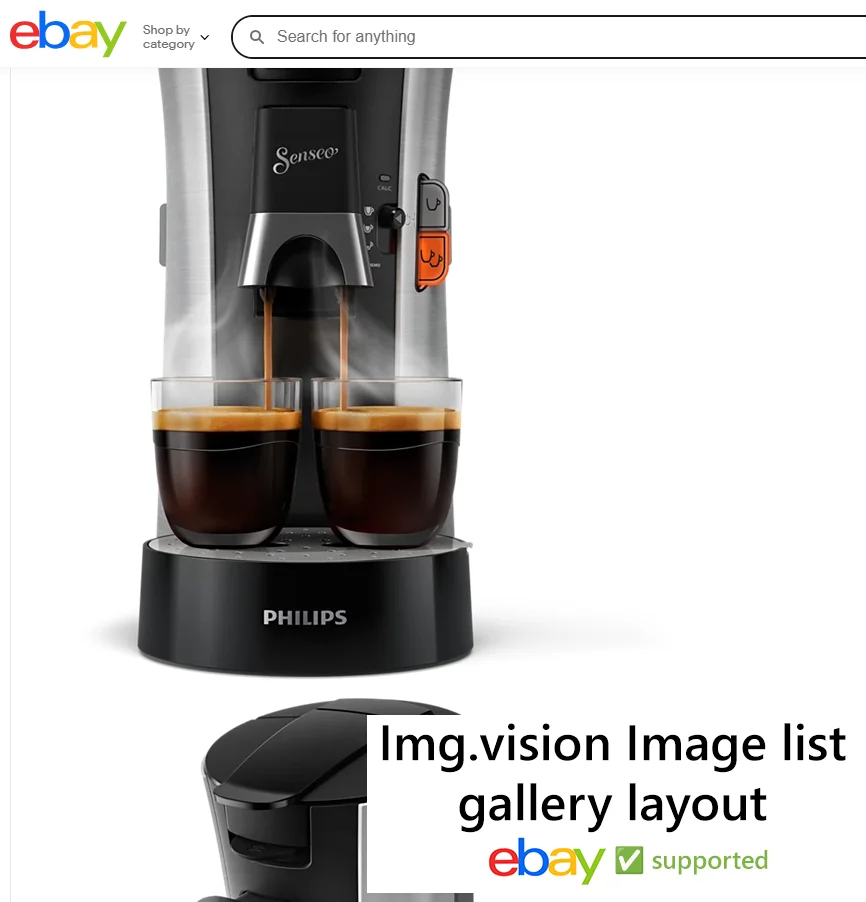
Image list gallery
If you want to just display all the photos full-sized, one by one after each other, each photo on a new line, you can go with the basic image list layout.
Grid + carousel gallery
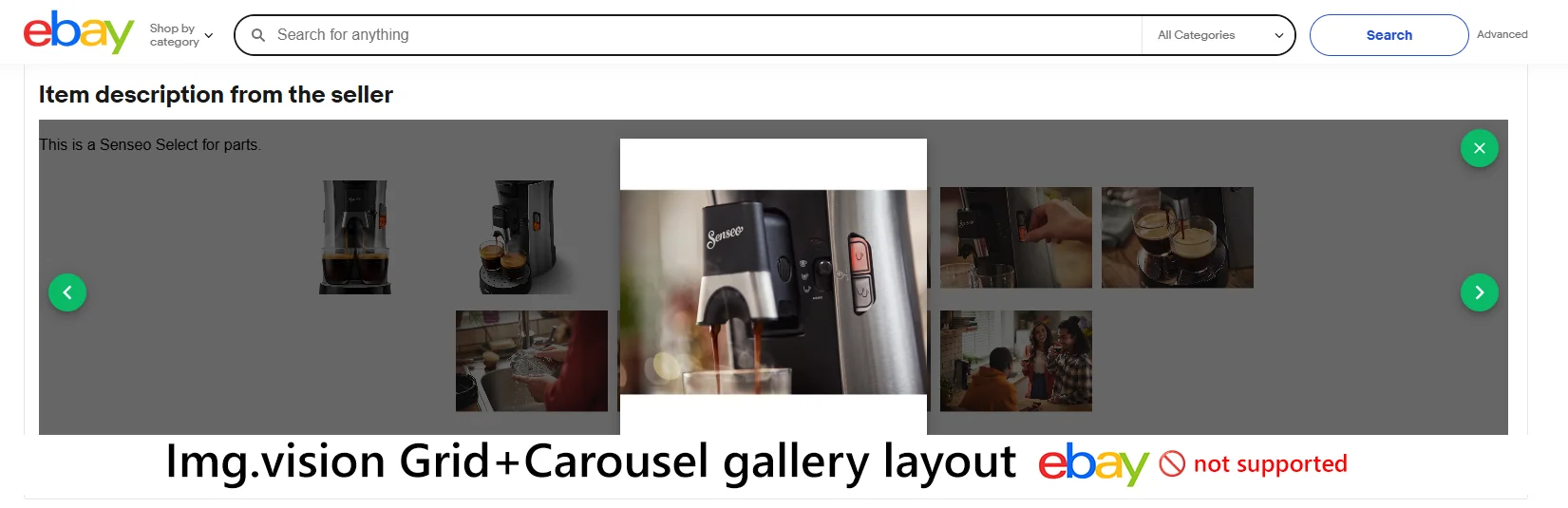
Img.vision also has a embeddable gallery layout “Grid + Carousel”. This one displays a small thumbnails grid and when clicking on a thumbnail opens a carousel with a large version of the image.
Unfortunately, this format is not fully compatible with eBay listings; the grid is shown and you can click to open the carousel, but the carousel is constrained by the height of the description area. As you can see from the screenshot, this can make the carousel rather small in certain situations.
Steps using Img.vision:
- Select your images in your Img.vision dashboard
- Select “Share images in gallery”
- You will see multiple gallery style options
- These are the styles that eBay supports:
- Carousel: there is a large preview and you can scroll through images at the bottom
- Large thumbnails
- Masonry: “bricks” of thumbnails that fill up spaces caused if some images are smaller
- Image list: large images one after another
- These are the styles that eBay supports:
- Select your gallery style and copy the code
- Go to your eBay gallery listing
- In the description, type out your text and choose after which sentence to place the gallery
- Next to the description box choose “Show all options” and accept the popup
- Enable HTML checkbox
- Find the sentence after which you want to show the gallery in the HTML code.
- The tricky part is to add the gallery code between the right HTML tags. Between something angled brackets pointed left and right towards each other is good.
- Or also after the angled bracket after the single word “br”.
- You can add as many linebreaks that you’d like in HTML edit mode, they won’t add extra space to the description when visitors see it.
- Paste you code. You can disable the HTML checkbox to see your description in normal mode again.
Tip: Resize your images before adding them to your listing
You may want to resize your images before adding them to a gallery. Photos taken by a camera, even a smartphone camera can have a huge amount of pixels. On desktop, and definitely on mobile, the dimensions will be too large to fit on the screen.
Video
Here’s a short video I recorded to show how it’s done: