

What this page covers
What is the Merchant Integration Platform?
With eBay’s Merchant Integration Platform you can setup a feed based system that synchronizes large quantities of products with eBay listings. This is something aimed at medium-sized to large sellers. You create CSV or XML files, eBay processes them and creates and updates the item listings.
This method is harder than using the point-and-click screens of the Bulk Listing Tool, but it doesn’t necessarily mean it’s hard to do.
If you are familiar with feed files used with other marketplaces, such as Amazon or Google Shopping, you’ll know what this is about and will start selling in no time. In fact, eBay supports the Amazon feed files format as well.
When to use which method?
This table explains why you would use MIP over the other available bulk listing methods:
| Tool | Best For | Ease |
|---|---|---|
| Seller Hub Reports / Bulk Listing Tool | Medium inventory, simpler workflows | Easy |
| Merchant Integration Platform (MIP) | Large catalogs & automated feeds | Advanced / Technical |
| Inventory API | Deep systems integration | Developer level |
Step-by-step setup
Step 1: Setup Channels to sell
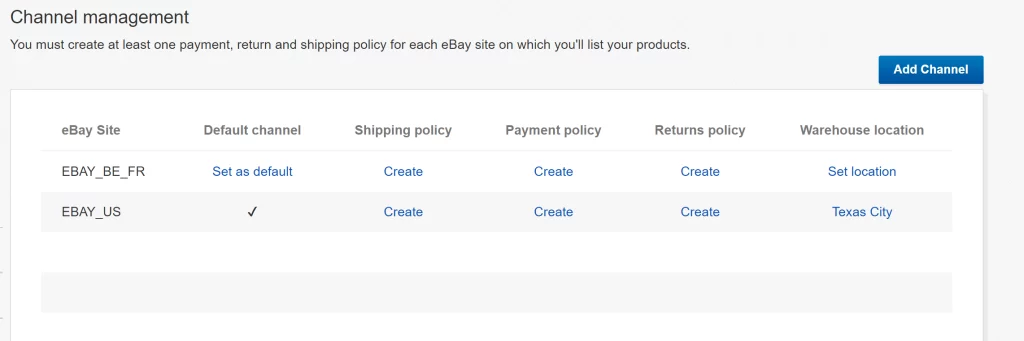
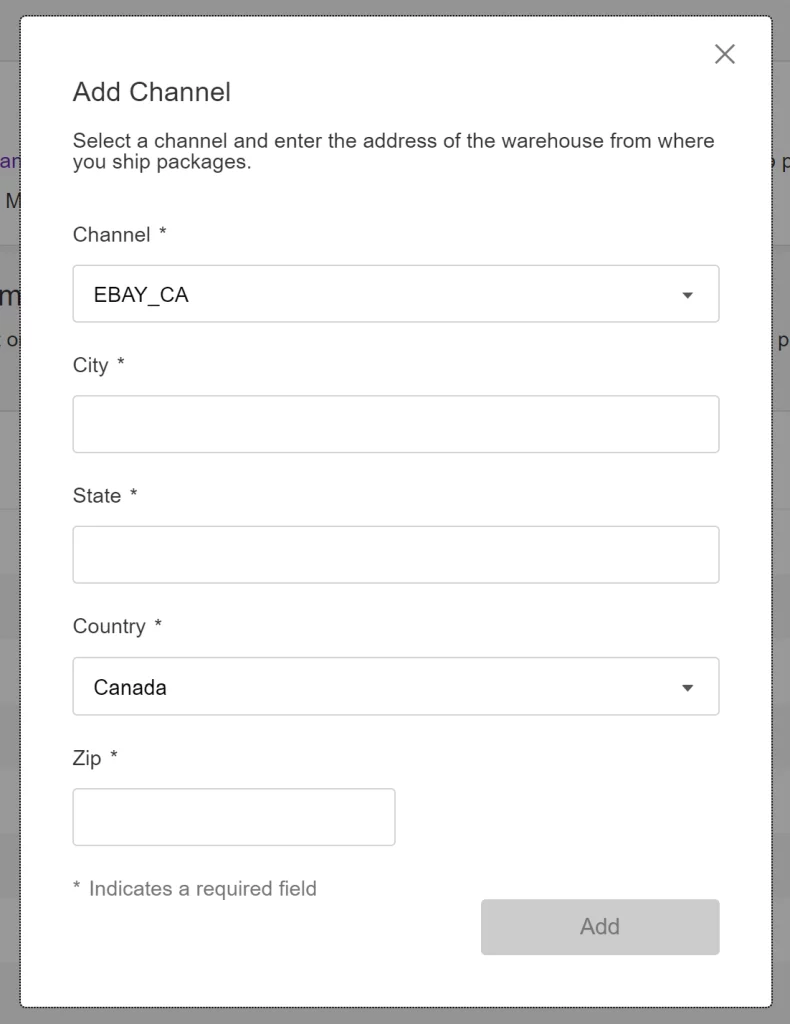
Visit the MIP Channel Management page and add the channels where you want to sell on eBay.
The MIP Channel settings tell eBay the following things:
- Location of your warehouse: This is needed for customers to calculate the shipping costs.
- The eBay website to sell your products: For United States, pick EBAY-US
You can add multiple channels if you have multiple warehouses.
Step 2: Setup business policies
In the Channel Setup screen you can click the “Create” link to setup the required business policies as a seller.
You are required to setup 3 business policies when selling on eBay:
- Payment policy: How customers can pay you eg. credit card, PayPal
- Shipping policy: How you will ship your product
- Return policy: If customers can return items
You can create multiple policies. When creating the spreadsheet, you’ll need to specify the name of the policy that applies. For example:
| Shipping | Payment | Return |
| US_Shipping_01 | US_Pay_01 | US_Return_01 |
| US_Shipping_02 | US_Pay_01 | US_Return_01 |
| US_Shipping_01 | US_Pay_01 | US_Return_02 |
Step 3: Set Feed Scheme to CSV
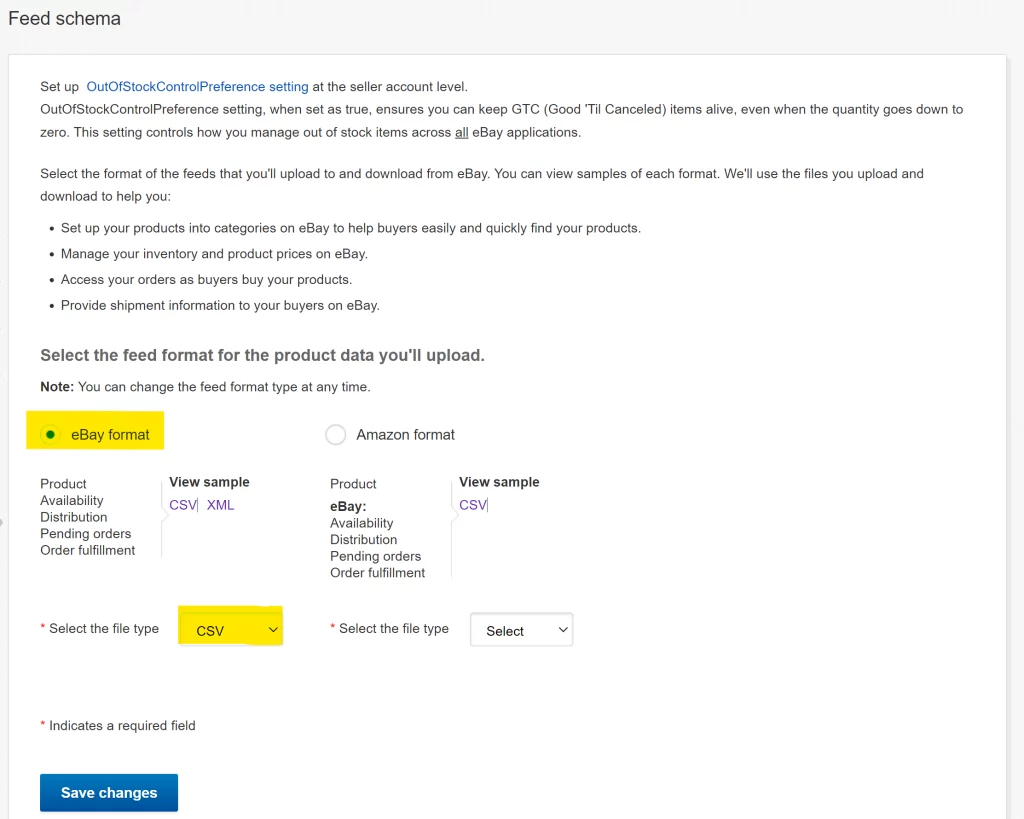
This is the easiest step. Basically, you need to tell eBay that the files you’ll be uploading with product data, what format they are in.
You can choose between eBay and Amazon, and within eBay you can choose between XML and CSV.
In your case, choose eBay with file format CSV.
A CSV is a spreadsheet/Excel file that is saved into a very basic plain text format. The table in your spreadsheet is written in a simple text file with a line for every row, and the columns are separated by a comma. (Geek tip: CSV actually stands for Comma Separated Values)
Step 4: Creating your CSV or XML files
You can upload various CSV/XML files to eBay, each with their own type of data.
There are files about availability, adding inventory, deleting inventory, category data, etc.
The full list of CSV files can be found on the eBay Merchant Integration Platform sample page.
What you need to create listings in bulk is only product-combines.csv.
Step 5: Uploading your files
There are two ways you can upload your files:
- Use the UI in your browser
- Or using SFTP, you’ll need an FTP program like free FileZilla for this
Step 6: Handling errors
When a file is uploaded, the processing of the listing rows in the file can go flawlessly or may fail.
eBay will generate a result file per file you upload where you can check if there are any errors.
You can download this results file from the same page you uploaded the file in the UI.
Technical best practices
Follow these best practices to reduce errors, speed up processing, and keep bulk listings stable.
➡️ Use Incremental Feeds
Upload only SKUs that changed (price, quantity, images), not full catalogs. Full uploads should be limited to initial setup or major changes.
➡️ Keep Feeds Small and Structured
- Keep feeds under 25 MB
- Split large catalogs
- Use ZIP compression when available
Smaller feeds process faster and fail less often.
➡️ Upload Feeds in the Correct Order
- Product / listing feeds
- Image feeds
- Availability feeds
- Price feeds
Uploading dependent data too early often results in ignored updates.
➡️ Use Stable, Permanent Image URLs
Image links must be:
- HTTPS
- Public and direct (
.jpg/.png) - Non-expiring
- Redirect-free
Avoid changing image URLs. Overwrite files instead to prevent reprocessing delays or broken images.
➡️ Do Not Reuse Image URLs Across Products
Each SKU and variation should have unique image URLs. Reusing links can cause incorrect images and catalog conflicts.
➡️ Validate CSV Files Before Upload
- Exact column names (case-sensitive)
- UTF-8 encoding
- No extra columns or smart quotes
- One SKU per row
Most MIP errors are formatting-related.
➡️ Always Review Result Files
A successful upload doesn’t mean full success. Check result files for rejected rows and warnings after every feed.
➡️ Treat MIP as an Integration, Not a UI Tool
Automate feed generation, log uploads, and keep backups. MIP works best as a controlled pipeline, not a manual workflow.
Common mistakes & troubleshooting
Most Merchant Integration Platform issues are not system outages, but predictable configuration or feed problems. Below are the most common mistakes and how to diagnose and fix them.
❓ Images Not Showing or Updating
Common causes
- Image URLs changed between uploads
- URLs expire, redirect, or require authentication
- Same image URL reused across multiple SKUs
- Image feed uploaded before the product feed
How to fix
- Use permanent, direct HTTPS image URLs
- Do not change URLs when updating images-overwrite the file instead
- Assign unique image URLs per SKU and variation
- Upload product feeds first, then image feeds
❓ Feed Upload Succeeds but Data Doesn’t Update
Common causes
- Rows rejected during processing
- Incorrect feed order
- SKU mismatch or reuse
- Silent warnings ignored in result files
How to fix
- Always download and review the result file
- Check for warnings, not just errors
- Verify SKUs match exactly (case-sensitive)
- Re-upload only corrected rows instead of full feeds
❓ Listings or Variations Missing After Upload
Common causes
- Required fields missing in product feed
- Variation relationships incorrectly defined
- Parent product created without children
- Attribute values inconsistent across feeds
How to fix
- Validate required columns before upload
- Ensure variation attributes match exactly across parent and child rows
- Upload parent and child records in the same feed when possible
- Confirm all variation SKUs exist before uploading availability or price feeds
❓ Price or Quantity Updates Ignored
Common causes
- Product does not yet exist in MIP
- Availability or price feed uploaded too early
- SKU not recognized due to formatting changes
How to fix
- Confirm the product feed was successfully processed first
- Upload availability and price feeds only after products exist
- Check SKU spelling, casing, and whitespace
❓ Feed Processing Is Slow or Stalls
Common causes
- Feed file too large
- Upload during peak processing hours
- Multiple large feeds submitted simultaneously
How to fix
- Split feeds into smaller batches
- Upload during off-peak hours (early UTC morning)
- Space related feeds a few minutes apart
❓ Unexpected Errors or “Unknown” Failures
Common causes
- Hidden characters or encoding issues
- Extra or misspelled column headers
- Smart quotes or copied spreadsheet formatting
How to fix
- Use UTF-8 encoding
- Export CSVs directly from a clean template
- Avoid copying data from rich-text sources
- Validate feeds before upload
❓ When to Rebuild Instead of Fix
In some cases, incremental fixes create more issues.
Consider a clean rebuild if:
- SKUs were reused incorrectly
- Image URLs were repeatedly changed
- Variations are severely corrupted
- Multiple feeds consistently fail without clear errors
A controlled re-upload with clean SKUs and validated feeds is often faster than patching broken data.
