


Walmart allows sellers to upload product photos directly inside Seller Center: but did you know you can also paste image URLs instead of uploading files?
If you host your images on Img.vision, Walmart accepts those direct image links inside the UI for faster listing creation and instant updates.
This guide shows you how.
What this page covers
Why Use Img.vision Image Links in Seller Center?
✔️ Faster than uploading files
No more browsing folders or searching for the right photo.
Just paste the URL and the image loads instantly.
✔️ Perfect for teams and VAs
Everyone can use the same image links: no duplicates or mismatched photos.
✔️ Easy updates
Replace the image once in Img.vision, and Walmart automatically fetches the updated version.
✔️ Reliable CDN delivery
Your images load quickly for Walmart customers everywhere.
✔️ Cleaner workflow
You control all your product photos in one central place.
How to Add Img.vision Image URLs in Walmart Seller Center
Follow these steps to add product images using Img.vision:
1. Add or edit your listing item
Catalog:
- Add items
- Edit item
2. Scroll to the “Images” section
You’ll see the area where Walmart usually asks you to upload images.
Instead of uploading files…
3. Paste the URL into the input box and press ENTER
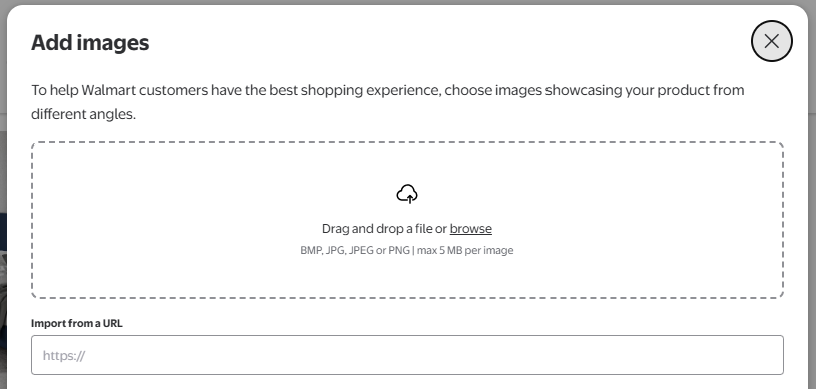
Walmart provides the option to enter a direct image link.
Paste your Img.vision URL, for example:
https://d.imgvision.net/yourDriveName/main.jpgWalmart will automatically fetch and display the image preview.
4. Add additional angle images

You can paste multiple Img.vision URLs for:
- main image
- lifestyle images
- detail shots
- variant colors
- swatches
Each URL becomes an official Walmart product image.
What Works And What Doesn’t
✅ Works: Image URLs in the Seller Center UI
Walmart does accept Img.vision links for:
- Primary image
- Additional images
- Swatch images
- Variant-specific images
These appear exactly the same as uploaded files.
❌ Does NOT Work: Images inside the product description
Walmart restricts “Below the Fold” and rich-media description images to a small list of approved partners.
Because of this:
- You cannot embed Img.vision images inside the HTML description box
- These images will not load in the “rich media” area
But this does not affect the product gallery images.
Best Practices for Smooth Seller Center Uploads
✅ Use JPG or PNG
Walmart renders these formats most consistently.
✅ Keep filenames simple
Example: product123-main.jpg
✅ Make sure images are large enough
Walmart recommends 1500×1500 for zoom support.
✅ Use clean, direct, permament URLs
No redirects, tracking links, or temporary URLs.
Why Walmart Sellers Prefer Img.vision
- Instant loading, even for high-resolution photos
- Permanent URLs that never change
- Safe, secure cloud hosting
- Organized product folders
- No expired links
- Easy sharing with teammates and suppliers
If you manage many listings manually in Seller Center, Img.vision saves hours every week.
