

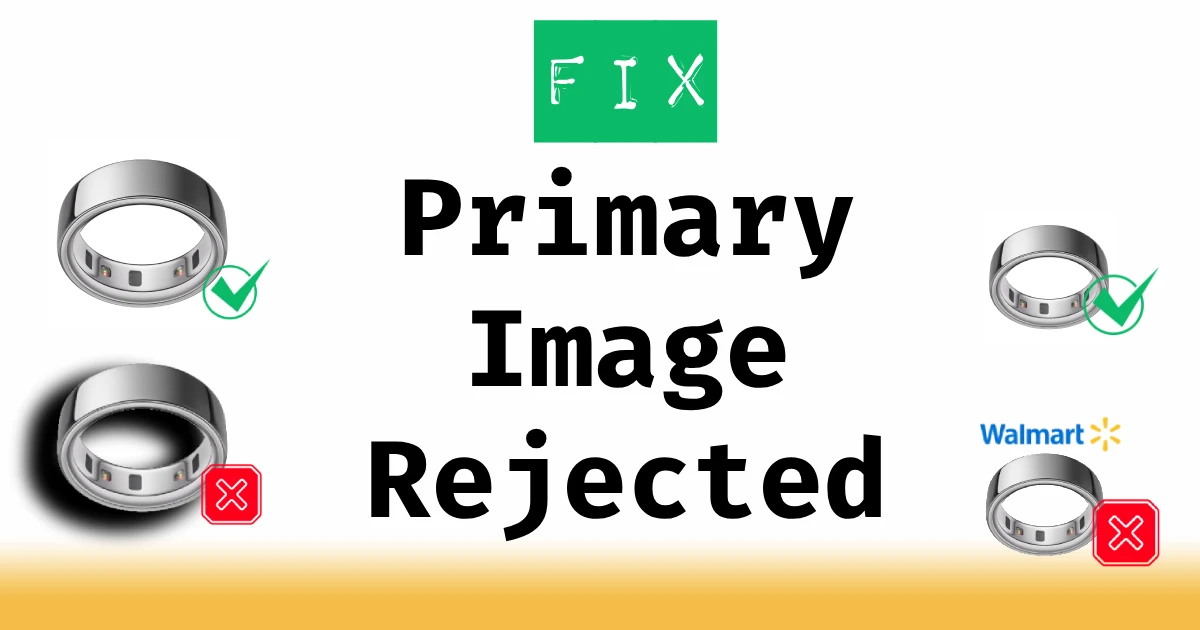
The complete guide to background rules, dimensions, metadata traps, and hidden-text detection.
Walmart’s item setup system is strict, especially for primary images. When your main photo is rejected, the platform usually gives you a short, vague message like “Invalid primary image“ or “Image not accepted“. But the underlying cause almost always relates to format requirements, improper backgrounds, hidden text, or embedded metadata.
This guide explains every major cause of a Primary Image Rejected error, how to fix it fast, and how to prevent future upload failures.
What this page covers
1. Walmart’s Primary Image Requirements (What Sellers Must Follow)
Walmart applies stricter rules to the primary image than any secondary image because this picture becomes the official product thumbnail across search, ads, and the PDP.
Here are the core requirements every primary image must meet:
✔️ 1.1 White or Light Background (No Patterns, No Gradients)
Walmart requires a white or near-white, uniform background for the primary image.
These backgrounds are NOT allowed:
- Light gray gradients
- Wooden table textures
- Concrete or fabric textures
- Lifestyle scenes
- Drop shadows that resemble real surfaces
- Colored borders or frames
Even subtle texture can cause an auto-reject because Walmart uses machine-vision checks.
✔️ 1.2 Minimum Dimensions + Aspect Ratio
- Minimum: ~500 x 500 px
- Recommended: 1000 x 1000 px or higher (1500 x 1500 px is excellent, especially for zoom)
- Aspect ratio: Square is preferred, but vertical and horizontal images are allowed if the product fills the frame.
Photos below 500px on any side are instantly rejected.
✔️ 1.3 Accepted File Formats
- ✅ JPG (most reliable)
- ✅ PNG (accepted but can create larger file size)
Walmart does not accept:
- ❌ WEBP
- ❌ TIFF
- ❌ GIF
- ❌ SVG
Special note about ❌ BMP: BMP files may upload successfully in Seller Center, but they are not reliably supported for primary images and frequently fail Walmart’s processing pipeline. For consistent approval, convert BMP images to JPG or PNG before submission.
✔️ 1.4 The Product Must Fill 85%+ of the Frame
Small product in big empty white space = likely rejection.
Walmart’s AI checks:
- Product coverage
- Unused whitespace
- Proper cropping
The product should fill most of the frame with minimal unused white space.
Images where the product appears small or distant are frequently rejected by automated checks.
2. Hidden Text & Invisible Elements: A Major Cause of Rejection
This is a common and often overlooked cause for Walmart to reject primary images.
Walmart’s detection system scans for:
- Faint or low-opacity logos
- Hidden promotional text
- Watermarks turned nearly invisible
- Semi-transparent corner branding
- Very small text (eg. 2-4px)
- Embedded shapes or strokes around the product
- Invisible layers accidentally exported from design software
Walmart flags these as text overlays if pixel patterns resemble text or branding, even when they’re not obvious to the human eye.
How to diagnose this:
- Open the image in Photoshop or Photopea.
- Crank exposure, contrast, or invert the image.
- If any text appears, Walmart’s algorithm can see it too.
How to fix it:
- Remove ALL text except what naturally appears on the product packaging.
- Flatten the image to a single layer before exporting.
- If issues persist, export as JPG instead of PNG. JPG removes transparency and hidden alpha data that can trigger automated text detection.
3. Metadata Problems: EXIF, MakerNotes & ICC Profiles
Some Walmart image failures are caused by metadata that interferes with Walmart’s image processing or normalization.
Cameras, phones, and editing apps embed:
| Metadata | Impact |
|---|---|
| GPS coordinates | Harmless in most cases |
| Lens info | Common, rarely problematic |
| ICC color profiles | Can cause color issues |
| Orientation flags | Real issue |
| Thumbnail previews | Usually ignored |
| MakerNotes (iPhones) | Rare edge cases |
In rare cases, certain metadata combinations can cause Walmart’s image processing to behave incorrectly.
Common metadata-related rejection triggers:
- EXIF orientation tag: Photo appears rotated 90° after upload.
- ICC color profiles: Non-sRGB profiles can cause color shifts or processing errors during conversion.
- Large metadata blocks: Walmart’s server sometimes rejects oversized EXIF blobs, however this is an edge case.
- Progressive JPEG encoding: Some Walmart ingestion pipelines fail on certain progressive JPG variants.
How to fix:
Re-export your image with:
- sRGB color profile
- Baseline (not progressive) JPG (not required, but recommended)
- Metadata stripped (most editors offer this option)
Tools like TinyJPG, ImageOptim can handle this, or deliver your images using Img.vision’s CDN, it handles this automatically.
4. File Structure Pitfalls (The Technical Causes Most Sellers Miss)
Even if your image looks correct, the underlying file may violate Walmart’s parsing rules.
Avoid these common issues:
❌ CMYK color mode
Print-style CMYK JPGs are not reliably supported and frequently are rejected.
Always export images as RGB → sRGB.
❌ Transparency in PNGs
Primary images should not rely on transparency. PNG alpha channels often introduce edge artifacts that trigger rejection. Flattening and exporting as JPG is the safest option.
❌ Corrupt JPEG markers
JPEG files with malformed or non-standard internal markers can upload successfully but fail during Walmart’s resizing or thumbnail generation, resulting in silent rejection.
❌ Non-standard JPEG encoders (mobile apps)
Images exported from mobile or social media apps often use unconventional JPEG encoders that render in browsers but break Walmart’s stricter image processing pipeline.
❌ Mismatched Content-Type headers vs file content
When an image URL returns a MIME type that doesn’t match the actual file (or serves HTML/WebP instead of JPG), Walmart’s ingestion system may reject or drop the primary image.
❌ Embedded thumbnails (rare)
Some cameras embed a second thumbnail inside the file with an incorrect orientation or color profile → Walmart rejects it.
❌ Odd DPI settings (rare)
DPI doesn’t matter for the web, but extremely unusual values (eg. 1 DPI or 30,000 DPI) can break validation systems.
5. Background & Edge Detection Errors
Walmart uses machine learning to ensure “clean product silhouette”.
These common issues cause rejection:
⚠️ Shadows that look like surfaces
A strong shadow makes Walmart think the product is on a table → rejected.
Soft, neutral drop shadows are usually fine.
⚠️ Jagged or poorly cut-out edges
AI interprets this as image manipulation or “fake background”.
⚠️ Partial transparency around the product
Especially visible when the background is supposed to be pure white.
How to solve edge issues:
- Use feather radius of 0.3-0.7px for cutouts.
- Avoid sloppy Magic Wand or AI-remove backgrounds.
- Zoom to 300% and manually refine edges.
6. How to Avoid Walmart-Invalid Upload Errors
Below is a checklist to ensure your primary images pass the first time.
Primary Image Acceptance Checklist (Copy & Use)
1/ Background & Composition
- White or near-white, uniform background
- No textures, floors, gradients, props
- Product fills most of the frame (minimal unused white space)
- No cut-off edges unless part of product shape
2/ File Format
- JPG (preferred)
- RGB/sRGB
- No transparency (PNG alpha isn’t banned, but it causes problems)
- Baseline encoding
3/ Dimensions
- At least 500px on shortest side
- Ideally 1500×1500px or larger
- Sharp, high-resolution
4/ Overlay Controls
- ZERO text or logos added
- No watermarks
- No badges (sale, promo, limited edition)
- Check for hidden text in layers or alpha channels
5/ Metadata Cleanup
- Confirm sRGB color profile
Not required, but recommended:
- Strip EXIF metadata
- Remove GPS, lens, orientation data
6/ Final Validation
- Test with Walmart’s API or Seller Center
- If rejected → re-export (start from scratch, see next part)
7. When You Should Re-Export Images Instead of Editing Them
Sometimes the file is so corrupted (metadata, channels, color profiles) that editing only makes it worse.
Re-export from scratch if:
- You shot the photo on an Apple device using HEIC
- You saved a PNG that relies on transparency or contains soft alpha edges
- You edited in AdobeRGB or P3 color profile
- You used Canva, then exported to PNG, then converted to JPG using a random online tool
- Walmart repeatedly rejects the file despite meeting all visual requirements
Re-exporting a clean, flattened JPG in sRGB resolves most stubborn Walmart image rejections.
8. Prevent Future Rejections (Pro Tips for Sellers & Brands)
⭐ Shoot product photos in controlled light
Avoid shadows, reflections, and uneven white backgrounds.
⭐ Use consistent export settings
Set templates in Photoshop / Lightroom / Capture One:
- JPG
- sRGB
- Baseline
- Metadata stripped
⭐ Host images on a proper marketplace-optimized CDN
While URL rules are outside this article’s scope, but a reliable CDN ensures files deliver correctly to Walmart.
⭐ Use an automated cleanup workflow
Platforms like Img.vision:
- Deliver JPGs as JPGs and don’t auto-convert to WebP like other image hosts, which prevents rejections
- Cleanup metadata when delivering the image to marketplace crawlers, solving any metadata related problems
This greatly reduces the risk of rejection and helps images pass Walmart’s ingestion pipeline on the first attempt.
Final Thoughts
Walmart’s Primary Image Rejected errors feel cryptic, but they’re actually predictable once you understand the underlying rules. The problem almost always comes down to:
- Background violations
- Incorrect dimensions
- Hidden text
- Problematic metadata or encoding issues
- Unsupported color modes (CMYK) or color profile conversion issues
- Transparency or bad file structure
Address these consistently, and you’ll eliminate the vast majority of primary image rejections, making uploads smoother, faster, and far less frustrating.
